Getting Started
This guide walks you through downloading, running, and inspecting the results of your first MKMCXX simulation.
1. Obtaining the Software
To begin using MKMCXX, download the software package
and unpack it on your machine. The package contains a single executable
file in its bin folder:
- Windows:
mkmcxx.exe - Unix/Linux/macOS:
mkmcxx
Note
No installation is required; you can run the executable directly. The binaries are designed to be portable and self-contained, allowing you to execute them immediately after download, without the need for additional setup, configuration, or dependencies.
In addition to the software, you will need a flat text editor to create and edit MKMCXX input files:
- Unix/Linux:
vimornanoare usually preinstalled. - Windows: We recommend using Notepad++ or Visual Studio Code.
2. Running the Program
Performing a simulation works somewhat different on Windows as compared to Unix. Please read the respective instructions below.
Windows
To run a built-in example simulation using MKMCXX, follow these steps:
-
Navigate to the Installation Directory
Go to the folder where you unpacked the MKMCXX software package. -
Open the Examples Folder
Inside the main directory, open theexamplesfolder.
This folder contains several subfolders, each with a different simulation example. -
Choose an Example
Open one of the subfolders. You should see a file namedinput.mkminside. -
Open a Terminal in That Folder
- Right-click in the folder (not on a file).
-
Select "Open in Terminal" (or similar option, depending on your system).
-
Run the Simulation
In the terminal window, enter the following command to start MKMCXX with the provided input file:..\..\bin\mkmcxx.exe -i input.mkmTip
Make sure the path to mkmcxx.exe is correct relative to the example folder you are in.
Once executed, MKMCXX will begin processing the simulation defined in input.mkm.
You can explore and modify the input file to experiment with different
simulation setups.
Unix/Linux/macOS
To run a built-in example simulation using MKMCXX on Linux, follow these steps:
-
Open a Terminal
-
Navigate to the Installation Directory
Change to the directory where you unpacked the MKMCXX software package. For example:cd ~/Downloads/mkmcxx -
Go to the Examples Folder Navigate into the examples directory:
cd examples -
Choose an Example Each subfolder contains a different simulation. For example:
cd basic-reactionInside, you should see a file named
input.mkm. -
Run the Simulation From within the example folder, execute MKMCXX using the relative path to the binary:
../../bin/mkmcxx -i input.mkmTip
Ensure that the binary has execute permissions. If needed, run:
chmod +x ../../bin/mkmcxx
After running the command, MKMCXX will process the simulation defined in
input.mkm. You can modify this file to explore different simulation setups.
3. Viewing the Results
The results of the simulation are written in a separate folder. The name of the
folder starts with SR_, indicative for a sequencerun. Upon opening the
SR_*** folder, you will see a list of folders for each temperature at which a
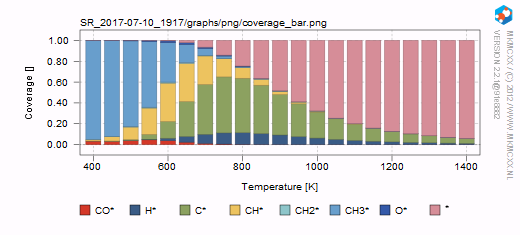
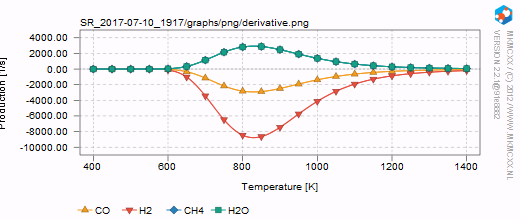
simulation has been performed as well as a graphs and range folder. In the graph
folder, you can find automatically generated graphs of your simulation. In the
other folders, you will find the corresponding data files of your simulation.
Below, two graphs are shown that can be found in the graphs/range.